
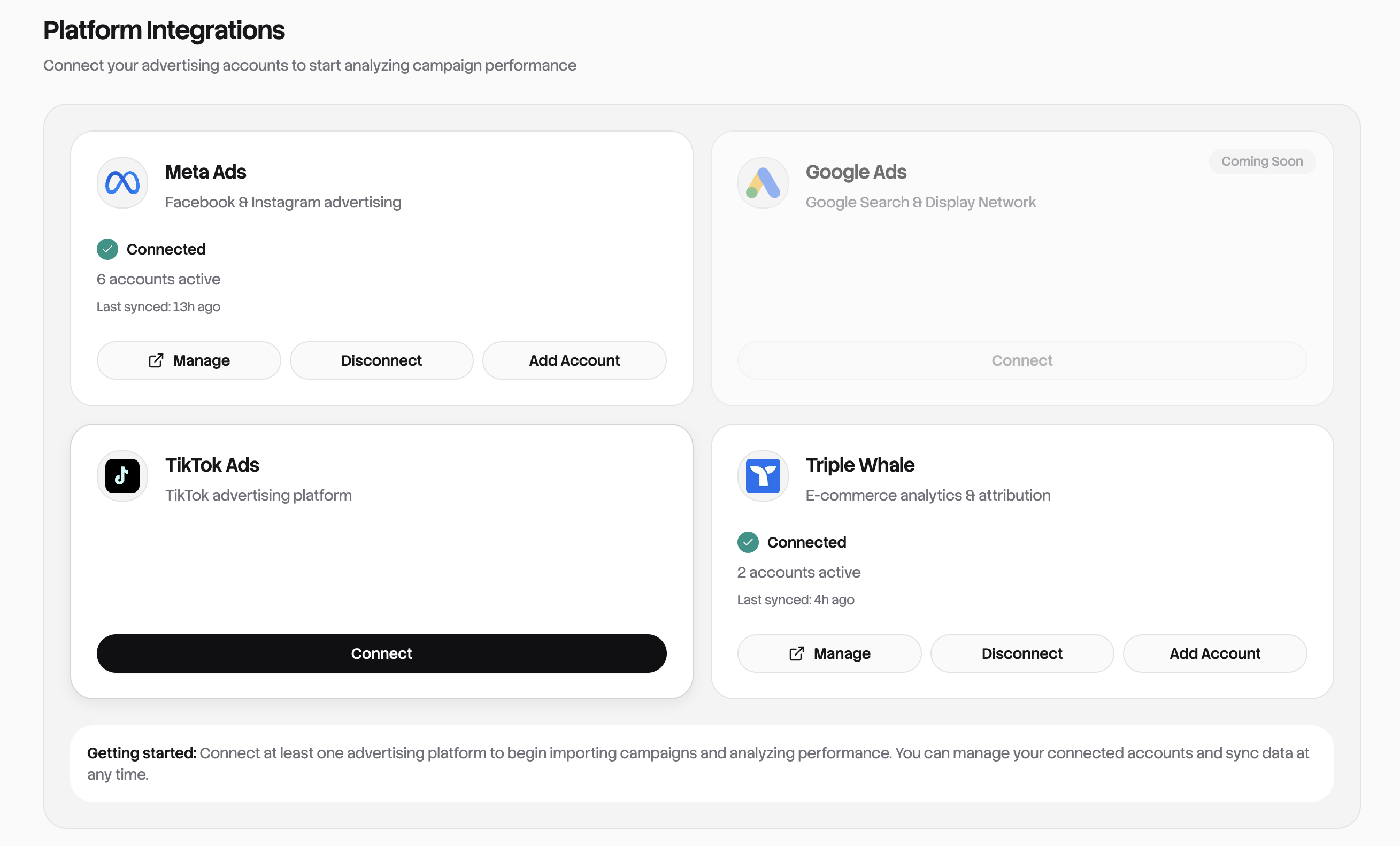
The Integrations page is where you connect your advertising platforms to the dashboard. Once connected, your ad data syncs automatically and appears across the Overview, Ads table, and Reports.
Supported Platforms
| Platform | Status | Authentication |
|---|---|---|
| Meta Ads | Fully supported | OAuth (Facebook login) |
| Triple Whale | Fully supported | API key |
| Google Ads | Coming soon | - |
| TikTok Ads | Coming soon | - |
Each platform appears as a card on the Integrations page. Connected platforms show a green checkmark and account count.
Connecting an Account
Meta Ads
- Click Connect on the Meta Ads card
- You'll be redirected to Facebook's login page
- Log in with the Facebook account that has access to your ad accounts
- Authorize the app to access your ad data
- You'll be redirected back to the dashboard
- All your ad accounts appear automatically
What gets connected:
- All ad accounts accessible to your Facebook user
- Each account syncs independently
- Historical data (up to 1 year) starts syncing immediately
Permissions required:
- Read access to your ad accounts
- Business management access (for business ad accounts)
Triple Whale
Triple Whale uses an API key instead of OAuth:
- Click Connect on the Triple Whale card
- A dialog opens asking for two things:
- API Key - Found in your Triple Whale dashboard under Settings → API
- Shop Domain - Your Shopify store domain (e.g.,
your-store.myshopify.com)
- Enter both values and click Connect
- Your Triple Whale data starts syncing
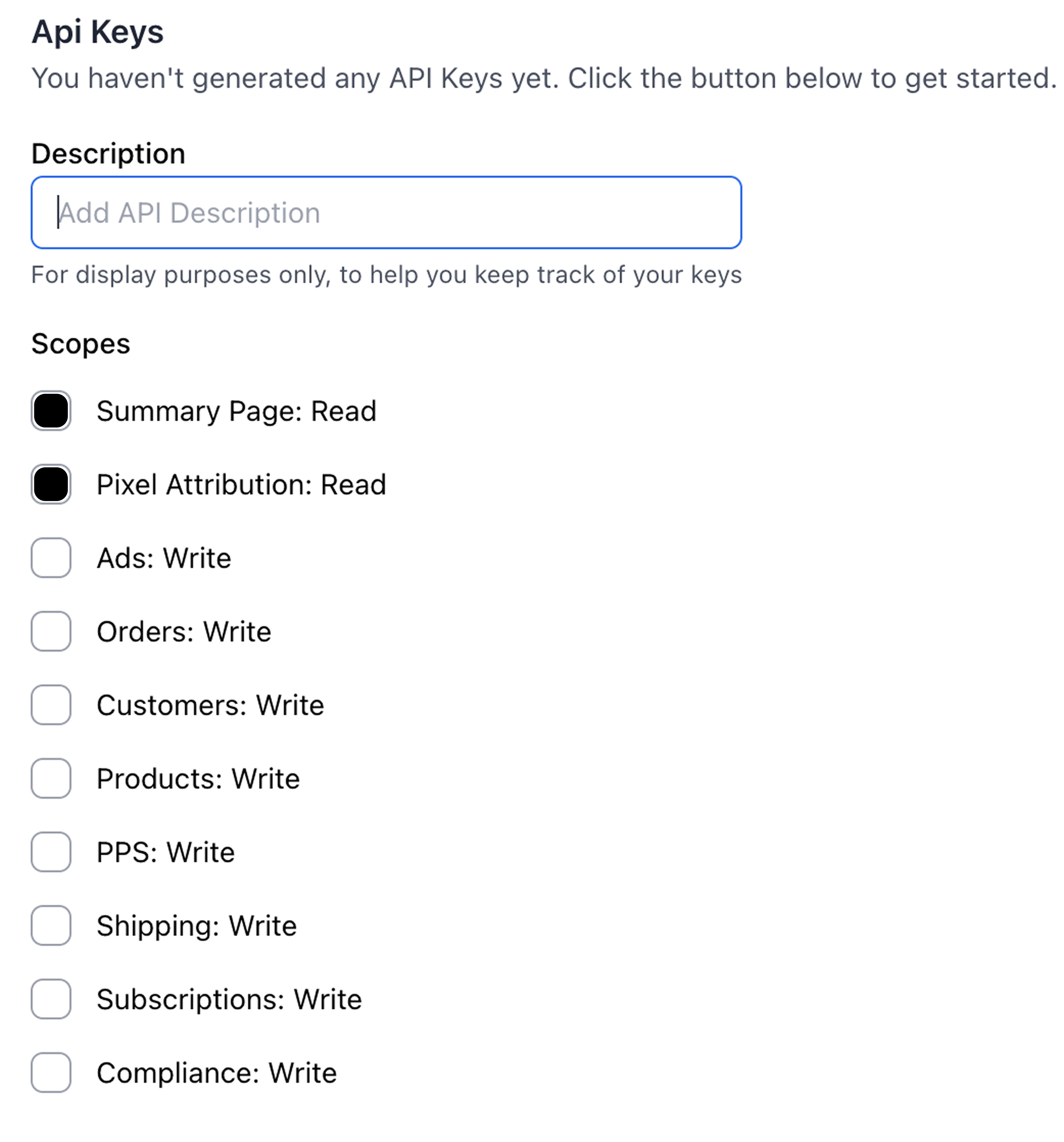
Required API key permissions:
- Summary Page: Read
- Pixel Attribution: Read
Adding More Accounts
Already connected but need to add another account?
- Click Add Account on the platform card
- Follow the same connection flow
- New accounts are added alongside existing ones
This is useful when you manage multiple businesses or get access to new ad accounts.